Police Can Search Your iPhone Without a Warrant, 1 Shortcut Can Stop Them
When police pulled over Jeremy Travis Payne, he didn’t expect them to search his phone without a warrant. But officers put him in handcuffs and used his thumb to unlock his phone. Later, in a viral 2020 video, an officer holds a phone up to a suspect’s face to unlock it without consent. According to the courts, this is completely legal. If you don’t want to disable your iPhone’s Face ID permanently, you should know how to disable it temporarily.
Why is it legal for police to unlock your phone with biometric data?
Since the earliest days of the computer, police haven’t been able to demand your password without a warrant. Courts ruled that searching a locked computer was similar to unlocking your front door with a key and searching your house. The same law extended to cellphones protected by a password or PIN. Then phones you could unlock with your biometrics changed everything.
In U.S. vs. Payne, the Ninth Circuit ruled that police can use your biometric data to unlock your phone and investigate a crime. They can do this even without a warrant or an arrest. You can say “no,” but police can still use force to apply your thumb or face to unlock your phone.
If you disable biometric unlocking, police will need a warrant to demand your password or unlock your phone through other means. You can do this permanently or temporarily during a traffic stop.
How to temporarily disable Face ID during a traffic stop
If you activate your iPhone’s “Power Off/Emergency SOS” screen, it will require a passcode to unlock. This is the familiar screen that appears when you hold both the power/lock side button and either volume button at the same time. You can see a photo of it below.
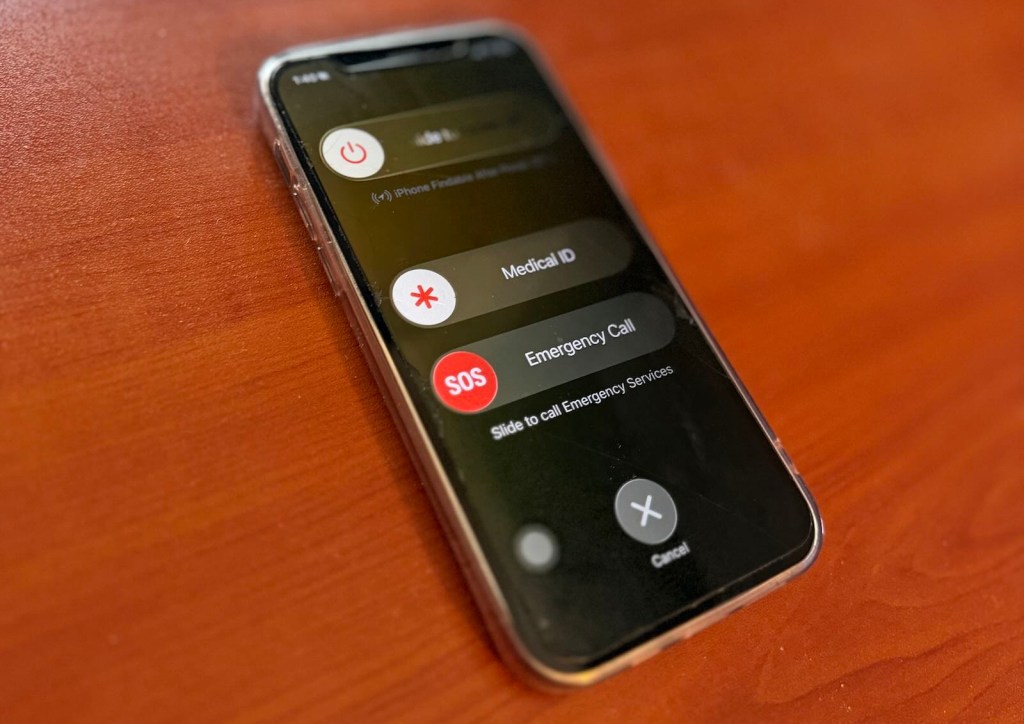
In iOS 26, this screen gives you a four-option menu. The first is the “slide to power off” feature. The second slider is for your Medical ID (if enabled). The third is an “SOS Emergency Call” slider to call 911. The fourth is a cancel button — a circle with an X in the center.
Once you hit “Cancel,” Face ID unlock will be disabled. You’ll need to enter your PIN to unlock your phone, automatically re-enabling FaceID. Note that law enforcement could still scroll through any notifications and previews displayed on your lock screen. But at this point, officers cannot open your phone without a warrant.
How do you use this feature? If you get pulled over for a regular traffic stop, it’s not a bad idea to open this Power Off/Emergency SOS screen. You can hit “Cancel” to return to the PIN prompt screen, and FaceID will still be disabled. In addition, if law enforcement ever demands your phone and you decide to voluntarily hand it over, you can first squeeze the power button and a volume button to toggle the Emergency SOS screen. If a police officer demands your PIN or password, you can just say, “I don’t consent to any searches.” You can say the same if they ask to look around your car or through your pockets.
Other options to secure your phone include powering it off/restarting it or disabling Face ID permanently.
Why it’s worth waiting for a warrant
Often, police officers may say they’ll just come back with a warrant, so you should consent to a search. The truth is a warrant limits what they can search for. If they have a warrant to search your car for a stolen laptop, they can’t go through compartments smaller than a laptop, such as the center console. If they find evidence of a different crime, they must jump through legal hoops to charge you. But if you volunteer that they can “look around,” you’ve given them blanket permission to search everywhere for evidence of any crime.